• Home
    • About OnlineRaceDriver
  • Racing Game Car Lists
  • Wheels & Pedals
  • Esports
  • Trackipedia Race Sim Track Lists

OnlineRaceDriver

Sim Racing News, Tips and Guides

  • Assetto Corsa
    • Assetto Corsa Competizione
    • Assetto Corsa EVO
  • Automobilista 2
    • Automobilista
  • F1 24
    • F1 23
    • F1 22
    • F1 2021
    • F1 2020
    • F1 2019
  • Forza
    • Forza Motorsport 7
    • Forza Motorsport
    • Forza Horizon 4
    • Forza Horizon 5
  • Gran Turismo
    • Gran Turismo Sport
    • Gran Turismo 7
  • iRacing
  • Le Mans Ultimate
  • RaceRoom
  • Rennsport
  • rFactor 2
    • rFactor
  • Test Drive Unlimited
    • Test Drive Unlimited Solar Crown
  • ATS
  • ETS 2
  • Wreckfest
    • Wreckfest 2
  • More Racing Games
    • EA Sports WRC
    • F1 Manager 2024
    • MX vs ATV Legends
    • NASCAR 25
    • Overpass 2
    • Project Motor Racing
    • RIDE 5
    • RoadCraft
    • SnowRunner
    • TrackDayR
    • World of Outlaws: Dirt Racing 24
  • Team ORD
You are here: Home / iRacing / How to delete and replace lap times on iRacing

How to delete and replace lap times on iRacing

May 19, 2021 By Dan Thornton Leave a Comment

As you delve deeper into sim racing, there are a surprising number of tools and tips which might not be immediately obvious. But all of them can help you become faster, and have a more enjoyable time. Such as discovering how to delete and replace lap times on iRacing.

There are two methods to wipe old Sector Times, Optimal Laps or Best Laps from your timing records. One is quick and simple, but the more detailed option also allows you to add the ghosts of other iRacing drivers to practice against.

That’s an added benefit to figure out how to amend your laptimes. Other reasons can include changes which slow specific cars, such as a loss of engine power or tyres, which can mean old times are no longer possible.
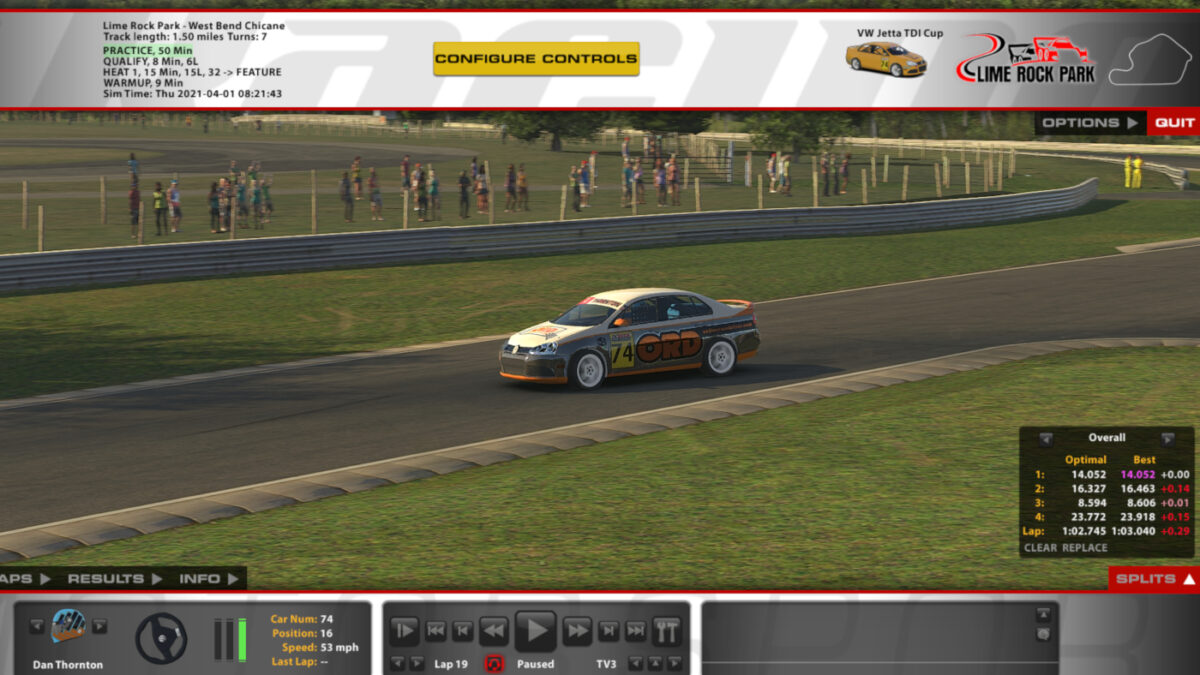
How to delete and replace lap times on iRacing

The simple method uses the iRacing UI to quickly Clear or Replace times. It’s not immediately obvious (at least not to me), but you need to first bring up the Splits box, and then click on what you want to alter.

At that point, the greyed out options for Clear or Replace suddenly becomes clickable. Which is a quick way to remove outdated laps or sectors from your records.

The other option requires a bit more effort. If you go to the Documents folder on your PC, you should see the iRacing folder. Open that and go to ‘lapfiles’, and then select the track and car combination you want to change. You’ll see two files per car and track, e.g. ‘06249_streetstock.blap’ and ‘064249_streetstock.olap’. Obviously, these refer to your best lap and optimal lap.

And while it’s a bit more hassle, it also allows you to add or replace .blap and .olap files from other racers. This means when you’re practising, you can be racing against a ghost of their laps for a comparison, although obviously the ghost car will appear with your livery, as iRacing will believe it’s a time you’ve set.

So knowing how to delete and replace lap times on iRacing can actually be a useful way to set up practice sessions against fast lap times. Let me know if you’ve found this helpful, and if you’d like to see more tips and tricks within iRacing, or any other sim racing game.

You can sign up to iRacing, here (and credit your referral to ORD, which we’d appreciate!). And see all vehicles included in your basic subscription, or what you can access by paying more, in our full official iRacing car list, here.

Or check out all of the included circuits, and the others you can buy, in our full official iRacing track list, here. And keep up with all the latest iRacing news, updates and eSports, here.

Share this:

  • Email a link to a friend (Opens in new window) Email
  • Share on X (Opens in new window) X
  • Share on Facebook (Opens in new window) Facebook
  • Share on Pinterest (Opens in new window) Pinterest
  • Share on Reddit (Opens in new window) Reddit
  • Share on Tumblr (Opens in new window) Tumblr
  • Share on WhatsApp (Opens in new window) WhatsApp

Related

Filed Under: Blog, FeaturedContent, iRacing, pc, Tips and Tuition Tagged With: iracing, iRacing tips and tricks

Leave a Reply

Your email address will not be published. Required fields are marked *

Social

  • Bluesky
  • Facebook
  • Instagram
  • Mastodon
  • Pinterest
  • Threads
  • Twitter
  • YouTube

Categories

Latest Videos

New PXN GT ONE Steering Wheel Launches At £199

New PXN GT ONE Steering Wheel Launches At £199

Truck Driver: The American Dream Steam Launch Story Trailer

Truck Driver: The American Dream Steam Launch Story Trailer

Road Truckers: New Beginning Playtest And Demo Due Soon

Road Truckers: New Beginning Playtest And Demo Due Soon

There will be an Over the Hill closed playtest to celebrate 1 million Steam wishlists

Over the Hill Closed Playtest To Celebrate 1 Million Steam Wishlists

A new 15-minute MotoGP 26 gameplay video is now available to watch

New 15-Minute MotoGP 26 Gameplay Video

Subscribe to the weekly ORD Newsletter and never miss Sim Racing news

* indicates required

View previous campaigns.

Powered by MailChimp

Useful Links

  • Sim Racing Game Car Lists
  • Sim Racing Game Track Lists
  • The Best Sim Racing Wheels For Beginners
  • The best Xbox 360 racing games


  • Privacy Policy
  • Cookie Policy

Categories

Connect with us

  • Bluesky
  • Facebook
  • Instagram
  • Mastodon
  • Pinterest
  • RSS
  • Twitter
  • YouTube

© 2026 Hot Mod Media · Design & Marketing TWOTW · Disposable Media · FPSPrestige · OnlineRaceDriver · The Guitar List · Rescars · Rescogs